Executive Summary
In PentestPad, you can create your own Executive Summary Templates. These Templates can be created on the /templates/executive-summary page. Alongside creating them, you can also update and delete existing ones.
Navigating to the Executive Summary page
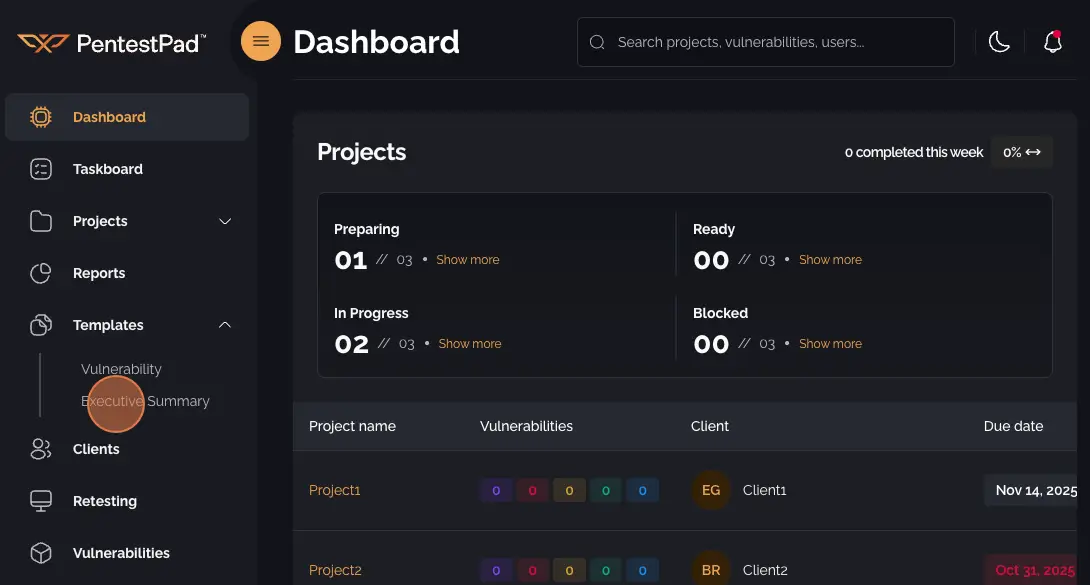
Section titled “Navigating to the Executive Summary page”Open the sidebar navigation menu, expand the Templates dropdown, and select Executive Summary.
View existing templates
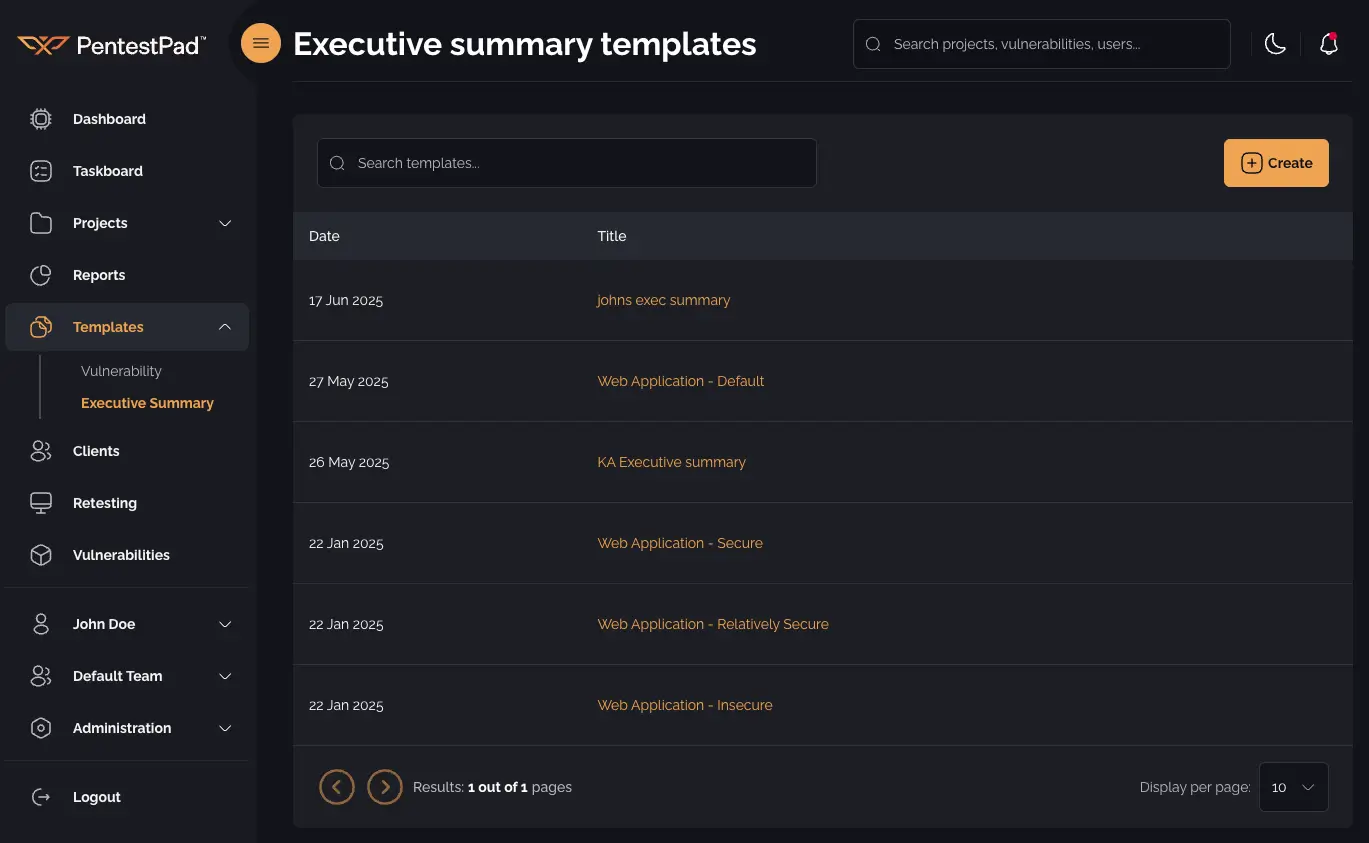
Section titled “View existing templates”Once you are on the Executive Summary page you can view all templates inside the table. You can also search the templates by name.
Creating a new Executive Summary Template
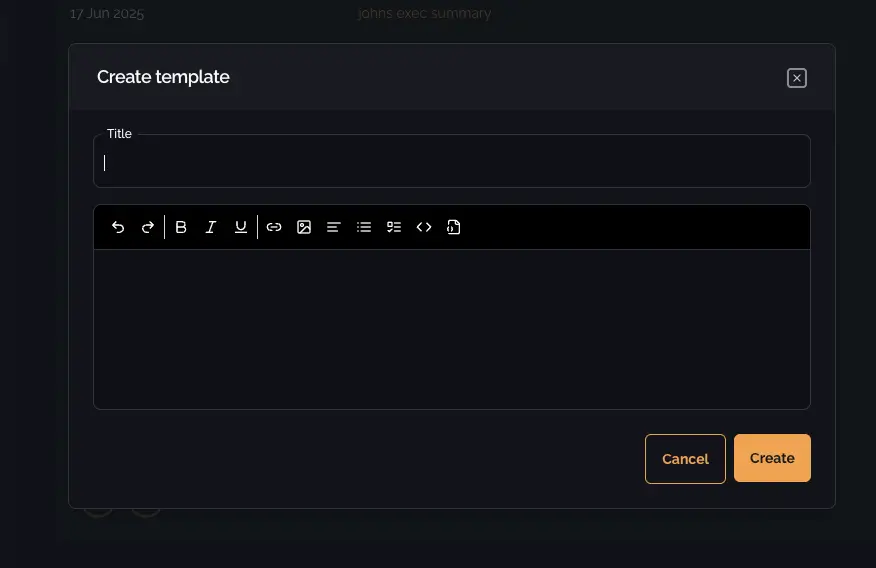
Section titled “Creating a new Executive Summary Template”To create a new template, click the Create button to open a modal where you can set the template’s title and content.
Editing an existing Executive Summary Template
Section titled “Editing an existing Executive Summary Template”If you want to edit an existing template, hover over the desired row and click the Edit button (pencil icon).
Deleting an existing Executive Summary Template
Section titled “Deleting an existing Executive Summary Template”If you want to delete an existing template, hover over the desired row and click the Delete button (trash icon). Once clicked, a modal will appear where you will be asked to confirm the deletion of the template.
How to use a template
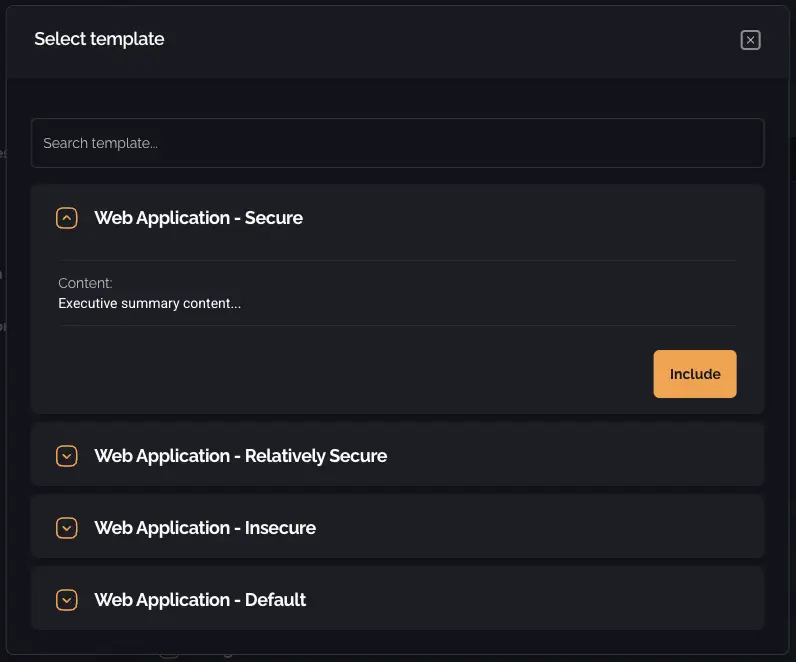
Section titled “How to use a template”When creating a new report for a project, click on Executive summary element to expand it. Inside of it you will find an Include from a template button. By clicking on it, a modal with the list of all the Executive Summary Templates will appear. Searching by name is available.
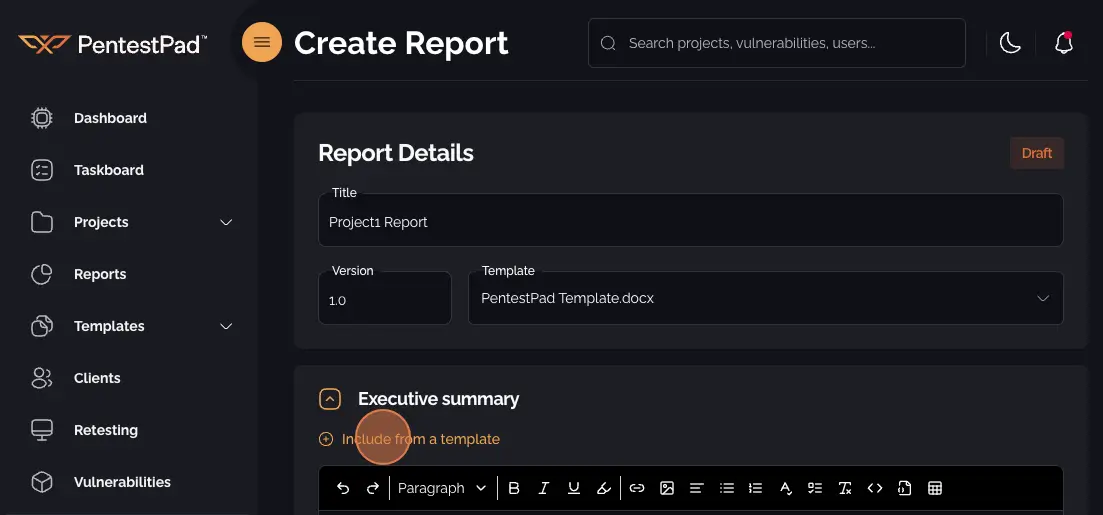
By clicking on one of the templates, you can view the content of that template. If you wish to use a template just press the Include button in the bottom right corner. This will populate the executive summary field of the report with the content of the selected template.