

Change Project Status
In PentestPad, a project’s status can be updated in two different ways: directly on the Project Board or through the Project Overview menu.
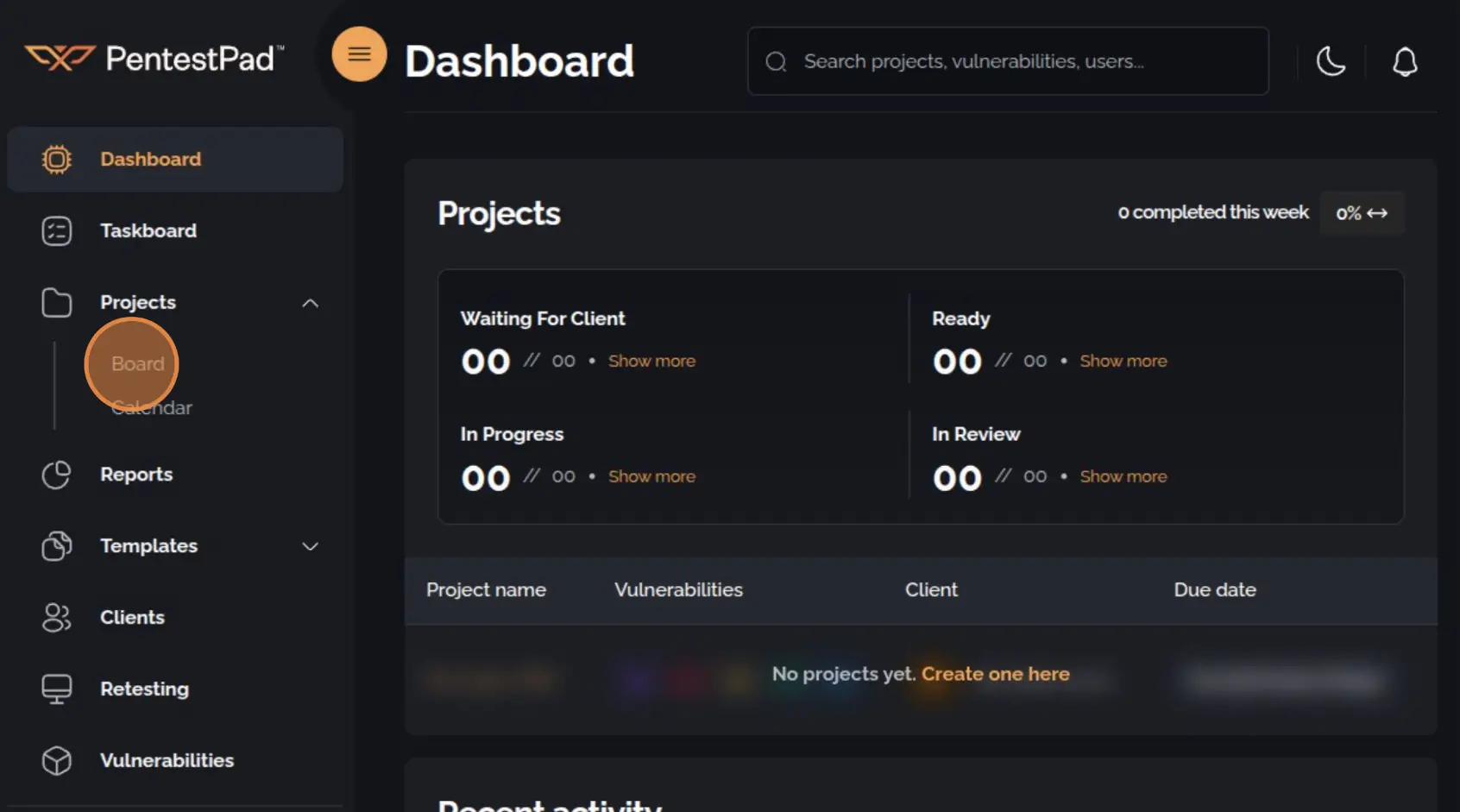
1. Navigate to the Project Board
Section titled “1. Navigate to the Project Board”Open the sidebar navigation menu, expand the Projects dropdown, and select Board.
Method 1: Drag and Drop
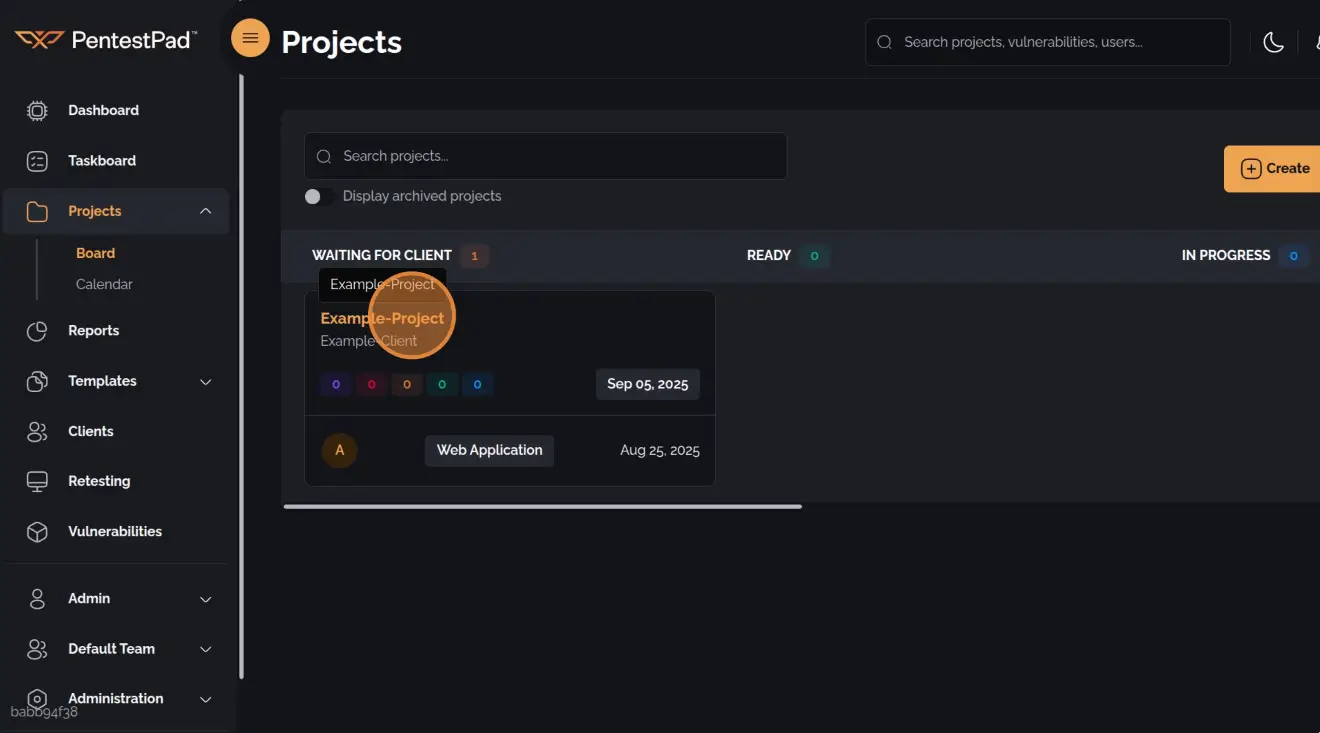
Section titled “Method 1: Drag and Drop”2. Drag and Drop the Project
Section titled “2. Drag and Drop the Project”On the Project Board page, drag and drop the desired project into the appropriate status column.
Method 2: Edit Through Project Overview
Section titled “Method 2: Edit Through Project Overview”2. Select the Project
Section titled “2. Select the Project”On the Project Board page, click the project title to open the Project Overview menu.

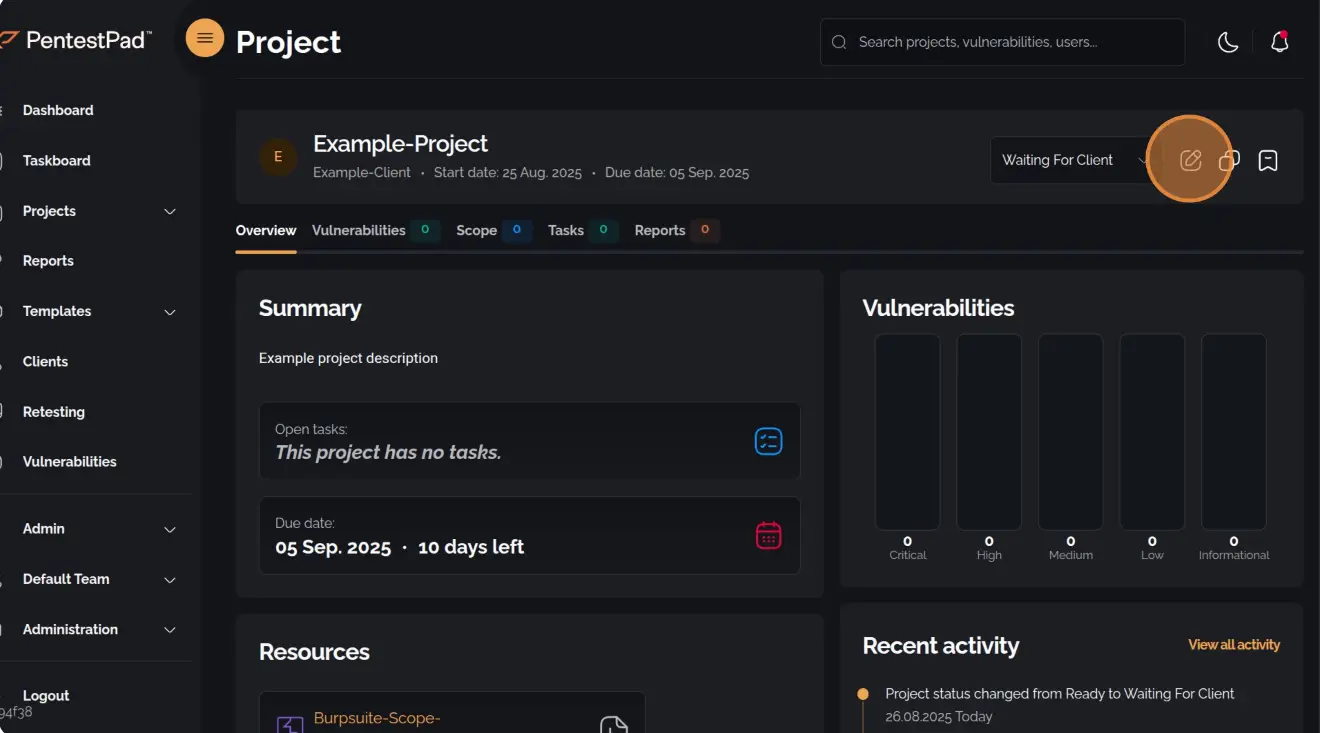
3. Click the Edit Icon
Section titled “3. Click the Edit Icon”In the top-right corner of the Project Overview menu, click the Edit icon.
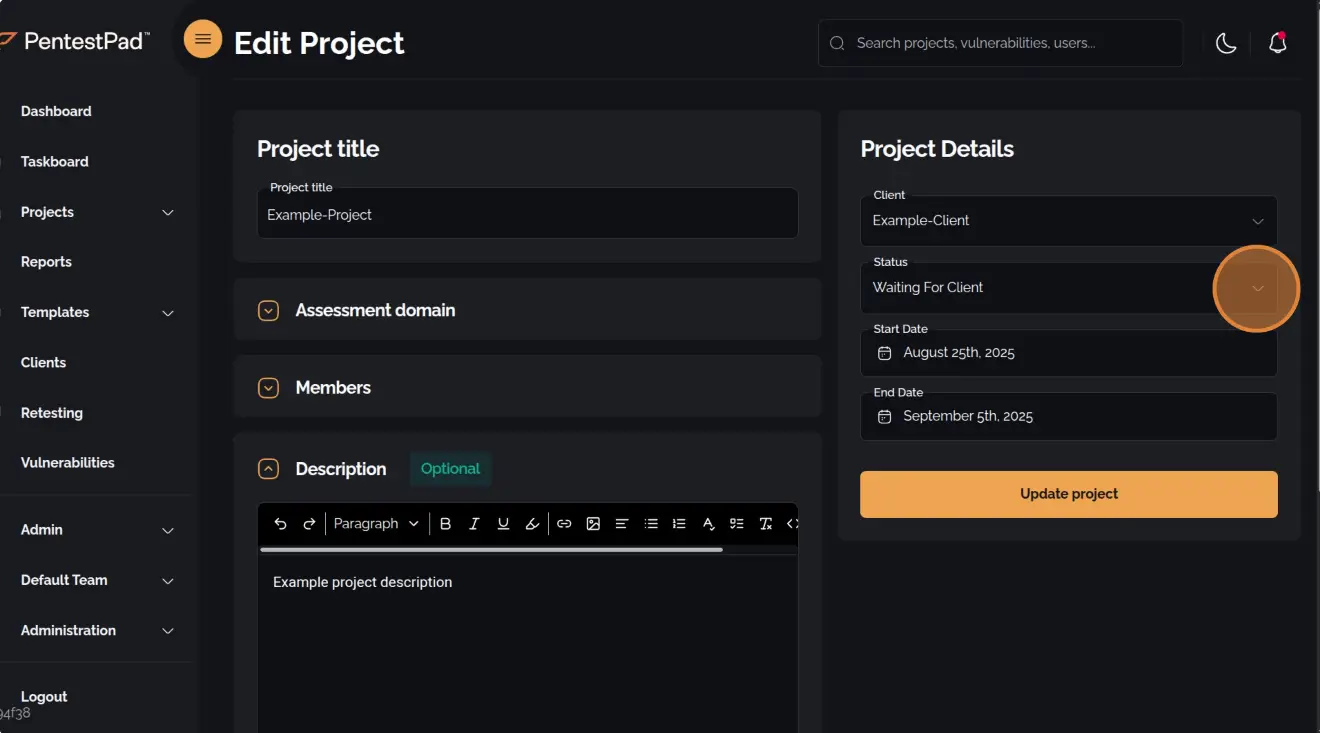
4. Change the Status
Section titled “4. Change the Status”Within the Project Edit form, use the Status dropdown box to update the project status.
5. Apply Changes
Section titled “5. Apply Changes”Confirm the changes by pressing Update Project button.